
Overview
Mod Pinner lets you pin any modifier to the top of the modifier stack. Useful when you need a modifier (like TurboSmooth or Shell) to always stay on top while you continue adding and editing modifiers below it.
Requirements & Installation
Requirements
3ds Max 2021 - 2027
Installation
- Unzip the archive
ModPinner.zip. - Drag the
ModPinner.mzpfile into the viewport. If drag-and-drop is not available, useScripting > Run Script. - Click
Install. - Open
Customize > Customize User Interfaceand locate it under
Group: Main UI > Category: BodyulCG. - Assign the macro to a hotkey or drag it onto a toolbar for quick access.
Quick Start
- Select an object and go to the Modify panel.
- Click on the modifier you want to pin.
- Run the Mod Pinner Toggle macro — the modifier moves to the top of the stack and its name gets a prefix and suffix label.
- To unpin, select the pinned modifier and run the macro again.
- To adjust the label, run the Mod Pinner Settings macro and set a custom prefix and suffix.
Interface Overview
Settings Dialog
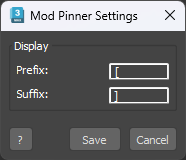
Opens via the Mod Pinner Settings macro. Controls how pinned modifiers are labeled in the stack.
Prefix
Text added before the modifier name. Default: [
Suffix
Text added after the modifier name. Default: ]
Both fields support emoji. Press Win + . to open the Windows emoji picker.
Save
Applies and saves the current prefix and suffix. Settings persist between sessions.
Cancel
Closes the dialog without saving. If unsaved changes are present, a confirmation prompt will appear.
Notes
Instanced modifiers: If you pin an instanced modifier on one object, it will be pinned on all other
objects sharing that instance.