
Overview
Dashed Shape is a 3ds Max tool designed to help artists quickly create dashed or segmented versions of any spline in the scene. It provides full control over the dash pattern, including custom dash and gap lengths, offset, and scale. Users can assign different material IDs to individual segments, maintain shape integrity, and preview the results directly in the viewport. The tool is ideal for motion graphics, architectural visualization, and other workflows where precision and flexibility are required.
Requirements & Installation
Requirements
3ds Max 2012 - 2027
Installation
- Unzip the archive
DashedShape.zip. - Copy the
DashedShapefolder to3ds Max 20xx\scripts. - Drag
Macro_DashedShape.mcrinto the viewport to install the macro. - Open
Customize > Customize User Interfaceand locate it underGroup: Main UI > Category: BodyulCG. - Optionally assign the macro to a hotkey or drag it onto a toolbar for quick access.
Quick Start
- Launch the script using the toolbar button or the assigned hotkey.
- Click Pick Shape and select any Line or Editable Spline object in the viewport.
- In Simple mode, set the Dash and Gap values to define the basic repeat unit. For more complex patterns, switch to Advanced mode and enter a custom sequence.
- Use Offset to shift the pattern along the spline, Scale to stretch or compress it, and enable Keep Shape to preserve the original curvature in the result.
- Toggle Preview to see the result live in the viewport before committing. The source shape is temporarily hidden during preview.
- Click Create to generate the final dashed spline object in the scene. The result is created as a new SplineShape at the same position as the source.
Interface Overview
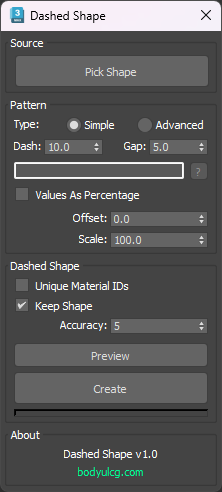
Source
Defines the spline that will be used as the base for the dashed pattern.
Pick Shape
Click to pick a source object from the viewport. Accepts Line and Editable Spline objects only. Once picked, the button displays the object name. If Preview is active, the source shape is hidden automatically and restored when preview is turned off.
Pattern
Controls the structure and rhythm of the dash sequence.
Type
Selects the input mode for configuring the pattern.
- Simple: The pattern is defined using two values — Dash and Gap.
- Advanced: Allows manual input of a custom sequence of any length, supporting asymmetric and multi-step patterns.
Dash
Length of each filled segment. Available in Simple mode only.
Gap
Length of each empty segment between dashes. Available in Simple mode only.
Advanced sequence field
A text field that accepts a space-separated list of numeric values. The values alternate between dash and gap lengths, starting with a dash. For example, 10 5 3 5 produces a long dash, a gap, a short dash, and another gap. Press Enter to confirm the input. Click the ? button for a quick reminder of the expected format.
Values As Percentage
When enabled, Dash, Gap, and Offset values are interpreted as a percentage of the total spline length rather than absolute scene units. Useful for patterns that should adapt proportionally to splines of different lengths.
Offset
Shifts the start of the pattern along the spline. Positive values move the pattern forward; negative values move it backward. The shift wraps around so the overall pattern length is preserved.
Scale
Scales the entire pattern along the spline. A value of 100 means no scaling. Values below 100 compress the pattern; values above 100 stretch it.
Dashed Shape
Controls how the result object is created.
Unique Material IDs
When enabled, each individual dash segment is assigned a unique material ID. The number of IDs corresponds to the number of dash segments in the pattern sequence. Useful for applying multi-sub-object materials to the result.
Keep Shape
When enabled, the dashes follow the curvature of the original spline. When disabled, each dash segment is output as a straight line, regardless of the original shape. Enabled by default.
Accuracy
Available when Keep Shape is enabled. Controls the precision of length interpolation along the spline. Higher values produce more evenly spaced dashes on curved or irregular splines. The default value of 5 is sufficient for most cases. Increase it if gaps between segments appear uneven.
Preview
A toggle button. When active, the dashed pattern is drawn directly in the viewport in real time as a visual overlay. The source shape is hidden while preview is on and restored when it is turned off. All parameter changes update the preview immediately. No scene object is created during preview.
Create
Generates the final dashed spline as a new scene object named DashedShape (auto-incremented if the name already exists). The result is placed at the same world-space position as the source shape. A progress bar below the button shows generation progress for complex splines.